Below video will show how to attach an HP EliteDisplay directly to an HP Desktop Mini using the new HP PC mounting bracket N6N00AA
Archive for the ‘How-To’ Category
How to attached HP Desktop Mini and HP Thin Clients to HP EliteDisplay Monitors
Monday, February 19th, 2018Odoo 10 and 11 Reports on OpenSuSe Leap 42.3 – Images show in HTML but not in PDF
Friday, February 16th, 2018After installing Odoo 10 or 11 on openSuSE Leap 42.3, report footer and header will show in HTML but not in PDF reports.
To solve this, we had to install the below (a patched version of wkhtmltopdf):
libwkhtmltox0-0.12.4.patched-18.1.x86_64.rpm
wkhtmltopdf-0.12.4.patched-18.1.x86_64.rpm
wkhtmltopdf-devel-0.12.4.patched-18.1.x86_64.rpm
wkhtmltopdf-qt-4.8.7.git20170418-1.1.x86_64.rpm
wkhtmltopdf-qt-devel-4.8.7.git20170418-1.1.x86_64.rpm
An alternative method also below:
wget https://github.com/wkhtmltopdf/wkhtmltopdf/releases/download/0.12.4/wkhtmltox-0.12.4_linux-generic-amd64.tar.xz
tar xvf wkhtmltox-0.12.4_linux-generic-amd64.tar.xz
mv wkhtmltox/bin/wkhtmlto* /usr/bin/
Google Chrome on Android Error Message – site cannot be reached
Tuesday, October 4th, 2016Lately, Google Chrome browser on Android OS has been throwing an error whenever I try to open a new webpage, “site cannot be reached, check your internet connection”.
I solved this problem by going into Settings and turning Data Saver Off.
OpenERP 7.0 with full RTL Right-to-Left Support on openSuSE 12.1
Saturday, June 1st, 2013Today, we installed the latest openERP 7.0 on our openSuSE 12.1 server. Also, we patched the new openERP 7.0 code similar to our post http://am4computers.com/wordpress/archives/258 to enable RTL support. As of now, all is working great with full support for Arabic and Hebrew.
Google Voice and Video for SuSE Linux Enterprise Desktop 11 SP2
Tuesday, January 8th, 2013A HOWTO for installing Google Talk on SUSE Linux for Firefox :
32 bit Code:
mkdir goog; cd goog
wget http://dl.google.com/linux/direct/google-talkplugin_current_i386.deb
ar vx google-talkplugin_current_i386.deb
sudo tar xvzf data.tar.gz -C /
64 bit Code:
mkdir goog; cd goog
wget http://dl.google.com/linux/direct/google-talkplugin_current_amd64.deb
ar vx google-talkplugin_current_amd64.deb
sudo tar xvzf data.tar.gz -C /
Then restart Firefox.
After you restart firefox, in the Tools -> Addons -> Plugins tab, you’ll see google talk. And yes, it should now work!
Error – OpenERP-Web client dies as soon as you log out
Saturday, January 5th, 2013Lately, we have been getting below error from the openERP-web client as soon as we log out the console session :
Traceback (most recent call last):
  File "/usr/local/lib/python2.6/site-packages/CherryPy-3.1.2-py2.6.egg/cherrypy/wsgiserver/__init__.py", line 1174, in communicate
    req.respond()
  File "/usr/local/lib/python2.6/site-packages/CherryPy-3.1.2-py2.6.egg/cherrypy/wsgiserver/__init__.py", line 544, in respond
    self._respond()
  File "/usr/local/lib/python2.6/site-packages/CherryPy-3.1.2-py2.6.egg/cherrypy/wsgiserver/__init__.py", line 556, in _respond
    response = self.wsgi_app(self.environ, self.start_response)
  File "/usr/local/lib/python2.6/site-packages/CherryPy-3.1.2-py2.6.egg/cherrypy/_cptree.py", line 239, in __call__
    return app(environ, start_response)
  File "/usr/local/lib/python2.6/site-packages/CherryPy-3.1.2-py2.6.egg/cherrypy/_cptree.py", line 130, in __call__
    return self.wsgiapp(environ, start_response)
  File "/usr/local/lib/python2.6/site-packages/CherryPy-3.1.2-py2.6.egg/cherrypy/_cpwsgi.py", line 313, in __call__
    return head(environ, start_response)
  File "/usr/local/lib/python2.6/site-packages/CherryPy-3.1.2-py2.6.egg/cherrypy/_cpwsgi.py", line 301, in tail
    return self.response_class(environ, start_response, self.cpapp)
  File "/usr/local/lib/python2.6/site-packages/CherryPy-3.1.2-py2.6.egg/cherrypy/_cpwsgi.py", line 74, in __init__
    self.setapp()
  File "/usr/local/lib/python2.6/site-packages/CherryPy-3.1.2-py2.6.egg/cherrypy/_cpwsgi.py", line 96, in setapp
    _cherrypy.log(tb, severity=40)
  File "/usr/local/lib/python2.6/site-packages/CherryPy-3.1.2-py2.6.egg/cherrypy/__init__.py", line 385, in __call__
    return log.error(*args, **kwargs)
  File "/usr/local/lib/python2.6/site-packages/CherryPy-3.1.2-py2.6.egg/cherrypy/_cplogging.py", line 55, in error
    self.error_log.log(severity, ' '.join((self.time(), context, msg)))
  File "/usr/local/lib/python2.6/logging/__init__.py", line 1093, in log
    self._log(level, msg, args, **kwargs)
  File "/usr/local/lib/python2.6/logging/__init__.py", line 1143, in _log
    self.handle(record)
  File "/usr/local/lib/python2.6/logging/__init__.py", line 1153, in handle
    self.callHandlers(record)
  File "/usr/local/lib/python2.6/logging/__init__.py", line 1190, in callHandlers
    hdlr.handle(record)
  File "/usr/local/lib/python2.6/logging/__init__.py", line 669, in handle
    self.emit(record)
  File "/usr/local/lib/python2.6/logging/__init__.py", line 778, in emit
    self.handleError(record)
  File "/usr/local/lib/python2.6/logging/__init__.py", line 720, in handleError
    traceback.print_exception(ei[0], ei[1], ei[2], None, sys.stderr)
  File "/usr/local/lib/python2.6/traceback.py", line 124, in print_exception
    _print(file, 'Traceback (most recent call last):')
  File "/usr/local/lib/python2.6/traceback.py", line 13, in _print
    file.write(str+terminator)
IOError: [Errno 5] Input/output error

This error can be avoided using :

nohup python2.6 openerp-web.py &
Installing OpenERP 5 on openSuSE 12 servers
Saturday, December 29th, 2012OpenERP version 5 won’t work with python 2.7 installed be default on openSuSE 12.1 server. The trick is to download and install python 2.6 as source and install it parallel to default version.
After that, you’ll have two python executables on the system, python (for 2.7) and python2.6 for the outdated version. The 2.6 version will be used to start the openerp server as below :
python2.6 openerp-server.py -r dbuser -w dbpassword &
Also, you need to install system wide packages needed by default installation of the openERP system. And you must use python2.6 or easy_install-2.6 to install missing python modules. My system was up and running after installing below python modules :
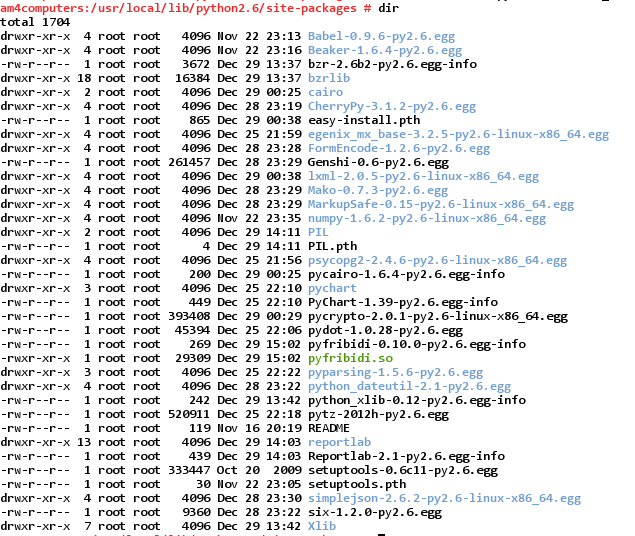
You must choose the same python module version numbers, update versions won’t work.
Error with OpenERP web client
Tuesday, November 20th, 2012After transferring our openERP 5.0.16 server to a new host, we are getting this error message while trying to add an attachment through the web client :
a class that defines __slots__ without defining __getstate__ cannot be pickled
The problem was that the default version of cherrypy was 3.2.2 and the web-server seems to have needed 3.1.2.
You can use ‘easy_install cherrypy==3.1.2’ to install the required version and now the web-server works fine.
Joomla Page Not Found Error with awardspace webhosting
Saturday, November 3rd, 2012Hosting Joomla on awardspace servers will probably cause your Joomla site to not direct to pages and articles correctly and you’ll be getting a lot of pages not found errors – “404 Page Not Found”.
Such issues are usually caused by the SEF functionality of Joomla. There are several things you should check in order to fix this:
- Open your configuration.php file and edit the var $live_site = ‘ ‘; line to match the actual URL of your website. If your website is http://yourdomain.com/joomla/ for example, the line should look like this:
var $live_site = ‘http://yourdomain.com/joomla/ ‘;
- Go to the administrative end of your Joomla website -> Global Configuration and make sure that Search Engine Friendly URLs is set to Yes.
- Also check that Use URL rewriting is set to No. Also in Global Configuration.
- Make sure you have renamed the htaccess.txt file in your Joomla folder to .htaccess.
- Edit .htaccess file and comment out Mod_rewrite in use.
If you follow all of the steps above you should have a fully operational Joomla website with the SEF functionality enabled.
Setting nomachine NX client and FreeNX client to start XFCE Desktop
Saturday, August 18th, 2012NoMachine NX client and FreeNX will start your GUI as KDE or GNOME. But if you choose custom desktop from configuration menu, you can set the command to ‘startxfce4’. This will start the XFCE desktop instead (if installed).